UX Anatomy
UX Anatomy: The Stepper
A darkly whimsical UX Anatomy field note on the stepper: how plus and minus controls help users adjust quantities, and how they become fiddly little traps when feedback, labelling or state is unclear.
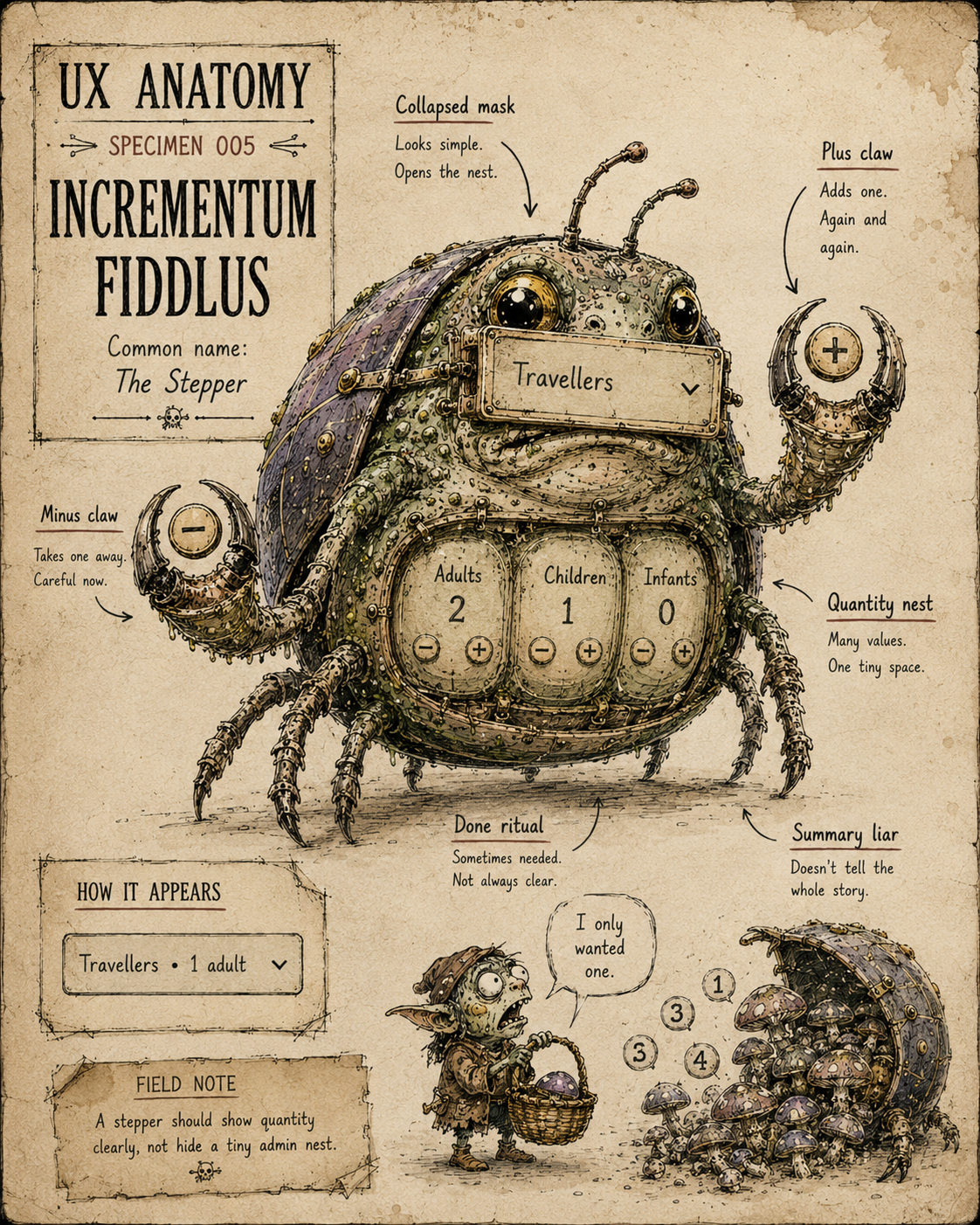
Specimen 005: The Stepper
Creature name: Incrementum Fiddlus
Common name: The Stepper
Also known as: Quantity selector, plus/minus control, passenger selector, counter, incrementer, decrementer, and the tiny arithmetic beast hiding inside booking forms.
Habitat: Travel booking forms, ticket selectors, ecommerce baskets, donation forms, room and guest selectors, seat bookings, checkout flows, subscription plans, product configurators, and anywhere users need to adjust a small count without typing a number manually.
Field Description
The Stepper is a small counting creature with a simple promise.
It says:
Add one.
Take one away.
Repeat until satisfied.
At its best, the Stepper is beautifully direct. It lets users adjust quantities without typing, guessing formats, or opening a keyboard. One tap increases the count. One tap decreases it. The number changes. The user remains calm. Society continues.
But the Stepper is rarely left alone.
Designers place it inside baskets, booking panels, passenger selectors, room pickers, donation widgets and popovers. Developers attach rules. Product teams add categories. Stakeholders request edge cases. Suddenly the tiny plus/minus creature has grown chambers, labels, age bands, disabled states, hidden totals and a Done button that may or may not be part of the ritual.
A Stepper should make quantity feel controlled.
A diseased Stepper makes users wonder whether they have successfully added a child, removed an infant, booked a room, summoned a second adult, or angered the arithmetic gods.
Anatomical Function
The Stepper’s job is to help users increase or decrease a numeric value in small, predictable steps.
A good Stepper answers:
- What quantity am I changing?
- What is the current value?
- What happens when I press plus or minus?
- Are there minimum or maximum limits?
- Has my change been applied?
When healthy, the Stepper gives users a sense of precision and control.
When diseased, it becomes a fiddly little number goblin. Users tap, squint, hesitate, wonder whether zero is allowed, and search for the hidden rule that explains why the minus button has gone grey with no explanation.
Healthy Stepper Traits
A healthy Stepper usually has:
- A clear label for the quantity being changed
- A visible current value
- Large, obvious plus and minus controls
- Clear minimum and maximum limits
- Disabled states that make sense
- Immediate feedback when the value changes
- Enough spacing to avoid accidental taps
- A clear relationship between the label, value and controls
- Keyboard and screen reader support
- A summary of selected quantities when collapsed
- Confirmation when changes require a separate action
The best Stepper feels like a tidy little dial.
The worst Stepper feels like operating machinery in a lift while someone shouts “just press Done” from another room.
Common Mutations
1. The Dropdown Impostor
This Stepper disguises itself as a normal input or dropdown.
At rest, it appears to be a single field. Perhaps it says:
- Travellers
- Guests
- Rooms
- Quantity
- Select
Then the user clicks it and the field opens into a whole control panel with categories, buttons, rules and a large Done button lurking at the bottom.
This is not always wrong. Passenger and guest selectors often need this kind of grouped control.
But the collapsed field must set expectations. If it looks like a simple text input and behaves like a popover full of arithmetic, the user experiences a tiny betrayal.
A Stepper should not leap out of a field wearing a false moustache.
2. The Quantity Nest
The Quantity Nest begins with one innocent value.
Then it multiplies.
- Adults.
- Children.
- Infants.
- Rooms.
- Bags.
- Pets.
- Wheelchairs.
- Ski equipment.
- A haunted uncle with special dietary requirements.
Grouped Steppers are useful when users need to configure related quantities, but they become heavy when the relationship between categories is unclear.
For example, a travel form may ask for:
- Adults: 1
- Children: 0
- Infants: 0
That can work well, but only if the user understands why those categories matter, what age bands apply, and how the final summary will be shown.
A Quantity Nest should feel organised.
It should not feel like opening a drawer and finding three smaller drawers arguing about who counts as a passenger.
3. The Minus Button of Despair
This mutation appears when the minus button is unclear, disabled, or still active when it should not be.
Sometimes users can reduce a value below a sensible minimum.
Sometimes the minus button is greyed out but gives no explanation.
Sometimes it looks active but does nothing.
Sometimes it is visually identical to the plus button, but functionally sulking.
Minimum values matter. A booking may require at least one adult. A basket may not allow negative items. A donation amount may have a minimum increment.
But rules should be visible or inferable.
A disabled minus button is acceptable.
A disabled minus button that silently radiates judgement is less helpful.
4. The Hidden Done Ritual
Others require a Done, Apply or Confirm button.
Both patterns can work. The problem begins when the interface does not make the ritual clear.
Users may wonder:
- Have my changes already been saved?
- Do I need to press Done?
- Will closing the panel keep the values?
- Will clicking outside cancel them?
- Did I just add three infants to my holiday enquiry?
If a Stepper uses a Done button, the button should be clearly connected to the panel and the collapsed field should update afterwards.
A Done button should feel like confirmation, not a mysterious stamp required by the Ministry of Tiny Numbers.
5. The Summary Liar
This Stepper’s collapsed state does not tell the truth.
The user opens a passenger selector, chooses:
2 adults
1 child
0 infants
Then the collapsed field still says:
Travellers
Select
Travellers Increase
This is poor feedback.
After configuration, the collapsed field should summarise the result in human language:
2 adults, 1 child
3 travellers
1 room, 2 guests
4 tickets
The user should not have to reopen the creature’s belly to check what they selected.
6. The Finger Combat Panel
This Stepper is technically usable if you have perfect motor control, a large screen, and the fingers of a concert pianist.
For everyone else, it is a small fight.
Common signs include:
- Tiny plus and minus buttons
- Buttons too close together
- Weak contrast
- Poor spacing between rows
- Unclear association between label and controls
- Small hit areas
- Controls that shift as values change
- Awkward mobile popover positioning
A quantity control is a physical interaction. People are tapping, clicking, correcting and sometimes holding a phone while standing in a kitchen, airport, train queue or minor state of panic.
The Stepper should have thumbs in mind.
Not just cursors.
Behavioural Symptoms
A sick Stepper may cause:
- Users repeatedly opening and closing the panel
- Users selecting the wrong quantity
- Users failing to notice category rules
- Users missing the Done or Apply button
- Users thinking changes have applied when they have not
- Accidental taps on plus or minus controls
- Rage clicks on disabled buttons
- Confusion when the collapsed summary does not update
- Basket quantity errors
- Booking form abandonment
- Accessibility issues for keyboard and screen reader users
- Mobile users struggling with small controls
In behaviour tools, Stepper problems may appear as repeated clicks, corrections, field reopening, stalled progress, unexpected basket changes, or abandonment after quantity selection.
UX Diagnosis
A Stepper is not just a number with buttons.
It is a control loop.
The user acts. The interface responds. The user sees the new state and decides whether to continue.
That loop needs to be fast, visible and trustworthy.
If the label is unclear, the user does not know what they are changing.
If the value is unclear, the user does not know where they are.
If the rules are hidden, the user does not know why the control refuses them.
If the collapsed summary is vague, the user does not know what they have chosen.
If a Done button is required but not obvious, the user does not know whether the ritual is complete.
The Stepper is a tiny test of system feedback.
It should make change feel obvious.
Not make arithmetic feel haunted.
Accessibility Notes
A healthy Stepper should:
- Use clear labels for each quantity
- Expose the current value programmatically
- Make plus and minus controls keyboard operable
- Provide accessible names for controls, such as “Increase adults” and “Decrease adults”
- Communicate disabled states clearly
- Avoid relying on icons alone
- Preserve visible focus states
- Use sufficient colour contrast
- Provide large enough touch targets
- Announce changes where appropriate
- Avoid trapping focus inside popovers
- Make Done, Apply or Cancel actions clear where used
A plus sign on its own is not always enough.
Screen reader users need to know what will be increased. Keyboard users need to reach and operate the control. Touch users need controls large enough to tap without accidentally adding a surprise toddler to the booking.
For grouped steppers, the structure matters. Each row should have a clear label, any relevant helper text, the current value, and controls that are programmatically tied to that value.
The creature may be small.
Its responsibilities are not.
Practical Treatment
To improve a Stepper, ask:
- Is the quantity label clear?
- Is the current value visible?
- Are plus and minus controls large enough?
- Are controls clearly associated with the right label?
- Are minimum and maximum limits clear?
- Are disabled states understandable?
- Does the value update immediately?
- If a Done button is required, is that obvious?
- Does the collapsed state summarise the selected values?
- Can users type instead if the range is large?
- Does it work properly on mobile?
- Can keyboard users operate it?
- Can screen reader users understand what is changing?
- Is this really a Stepper, or would a normal input be better?
- Is this really one field, or a small form disguised as a field?
Better Patterns
For small quantities, a Stepper can work well:
1 ticket
2 guests
3 rooms
4 items
For larger or unpredictable numbers, consider allowing direct typing:
Quantity:
[ 25 ]
For grouped passenger selectors, the collapsed summary should be explicit:
2 adults, 1 child
For age-based categories, include the rule near the label:
Adults: Age 12 and over
Children: Ages 2 to 11
Infants: Under 2 years
For changes that apply immediately, give immediate visible feedback.
For changes that require confirmation, make the confirmation action obvious:
Done
Apply guests
Update basket
The goal is not simply to let users press plus and minus.
The goal is to make the resulting quantity impossible to misunderstand.
Field Note
The Stepper looks simple because plus and minus are familiar.
But familiarity is not the same as clarity. A good Stepper makes small quantity changes feel controlled, reversible and obvious. A bad one turns counting into a tiny ceremony of doubt. Use it for small adjustments. Label it properly. Show the result. Explain the limits. And never let a collapsed field pretend nothing happened after the user has carefully configured a nest of passengers.