UX Anatomy
UX Anatomy: The Placeholder
A darkly whimsical UX Anatomy field note on the placeholder: why vanishing field hints are not labels, and how ghost text can harm clarity, accessibility and form completion.
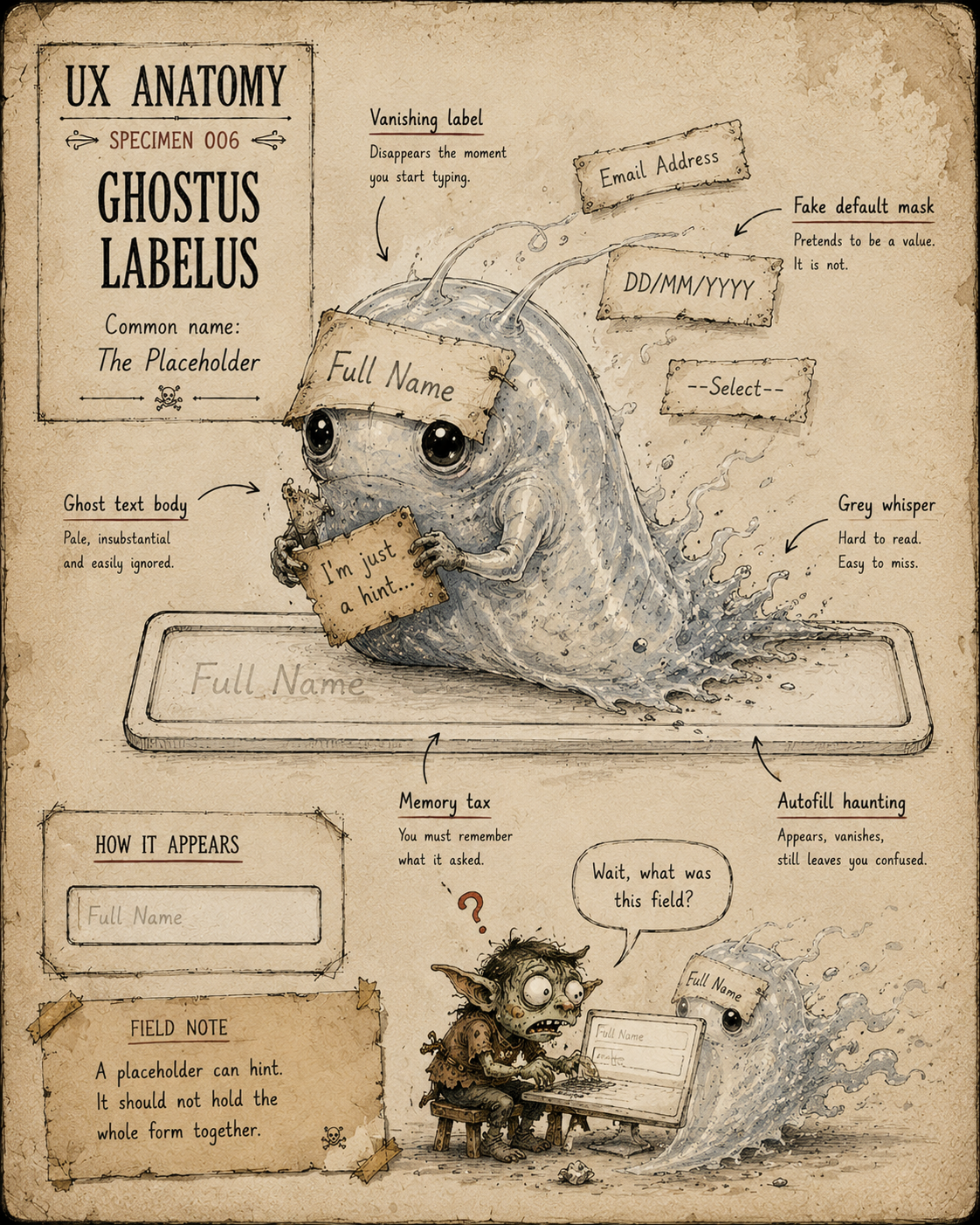
Specimen 006: The Placeholder
Creature name: Ghostus Labelus
Common name: The Placeholder
Habitat: Forms, search boxes, checkout flows, account creation, booking forms, filters, comment boxes, dashboards, and anywhere a label has been murdered and replaced with pale grey whisper-text.
Field Description
The Placeholder is a pale, slippery creature that lives inside empty form fields.
At rest, it looks helpful.
It sits quietly inside the input box, whispering things like:
Full Name
Email Address
DD/MM/YYYY
Search
Enter message
--Select--
But the Placeholder is not as reliable as it appears.
The moment the user starts typing, it vanishes.
This makes it dangerous when the Placeholder has been asked to do the job of a label, instruction, example, hint, warning, format guide, or tiny exhausted customer support team.
A Placeholder can be useful as a small nudge.
But it is not a label.
It is a ghost pretending to be structure.
Anatomical Function
The Placeholder’s job is to provide a brief example or hint inside an empty field.
A good Placeholder answers:
- What kind of input might go here?
- What does an example look like?
- Is there a preferred format?
- Can this hint disappear without harming the user?
That last question is the important one.
If the answer is no, the Placeholder is carrying too much responsibility.
When healthy, the Placeholder gives a light cue without replacing proper labelling.
When diseased, it becomes the Vanishing Label: a fragile scrap of guidance that disappears as soon as the user begins the task.
Healthy Stepper Traits
A healthy Placeholder usually has:
- A visible label outside the field
- Short, optional hint text
- Clear example formatting where useful
- Enough colour contrast to be readable
- No essential instructions trapped inside it
- No fake default values
- No critical requirements hidden in pale grey text
- No reliance on memory after the user starts typing
- Support from proper helper text where needed
The best Placeholder is a polite example.
The worst Placeholder is the only map, written in disappearing ink.
Common Mutations
1. The Vanishing Label
This is the Placeholder at its most common and most irritating.
Instead of giving the field a visible label, the interface places the label inside the input box.
It looks tidy in a mockup.
Then the user starts typing and the label disappears.
Now the user has to remember what the field was asking for, which becomes especially annoying in longer forms, review screens, error states, autofill scenarios, and moments of “hang on, what did I put in this box?”
A label should survive the user doing the task.
If it disappears when needed, it was never a proper label. It was a ghost in a rectangle.
2. The Fake Default
This Placeholder looks like a selected value.
Common examples include:
- --Select--
- Choose one
- DD/MM/YYYY
- Search by keyword
- Please select
This can create confusion because users may not know whether the field is empty, pre-filled, optional, invalid, or waiting for input.
Dropdowns and date fields are frequent hosts.
A Placeholder should not impersonate a real answer.
Ghosts should not be allowed to sign forms.
3. The Cryptic Prompt
This Placeholder uses awkward, unclear, or system-centred language.
Examples include:
<
- Email Id
- Travellers Increase
- Enter Details
- Value
- Remark
- Input here
The user can see the words. That does not mean the words are doing useful work.
A Placeholder should not make the user decode the system’s internal vocabulary.
If the field asks for a contact number, say contact number.
If the field changes traveller quantities, say travellers, guests, or passengers.
Do not summon a cryptic little phrase and expect the user to bring a shovel.
4. The Grey Whisper
This Placeholder is so pale it can barely be read.
It may look refined in a design file, but in the wild it becomes low-contrast fog.
Low contrast placeholder text is especially hostile for users with low vision, tired eyes, bright screens, poor lighting, older devices, or the general burden of being alive and trying to book something before dinner.
Quiet is not the same as usable.
If the hint matters, make it readable.
5. The Memory Tax Goblin
This mutation appears when the Placeholder contains instructions the user needs after they start typing.
For example:
- Password must include 8 characters, 1 number and 1 symbol
- Enter date as DD/MM/YYYY
- Use your booking reference, not your order number
- Tell us about your access needs
Once the Placeholder disappears, the user has to remember the rule.
This is how small fields become small cognitive traps.
Persistent helper text is usually better for requirements, formatting rules, examples, and anything the user may need to check while entering information.
6. The Autofill Haunting
This Placeholder becomes especially strange when browser autofill gets involved.
Autofill may populate the field, the Placeholder disappears, and the user is left with a completed form that has weak or missing labels.
This can make review difficult.
It can also create problems when the wrong information has been autofilled and the user cannot easily tell what each field represents.
Autofill is helpful.
Autofill plus missing labels is a séance.
Behavioural Symptoms
A sick Placeholder may cause:
- Users forgetting what a field asked for
- Users entering information in the wrong format
- Users skipping fields they do not understand
- Users mistaking placeholder text for a real value
- Users missing required instructions
- Users struggling to review completed forms
- Users making errors after autofill
- Increased validation errors
- Lower form completion confidence
- Screen reader or keyboard users receiving weak context
- Users rage-clicking, deleting, and retyping while muttering darkly at the interface
In behaviour tools, Placeholder problems may appear as field refocus, repeated edits, validation errors, hesitation, form abandonment, or users clearing fields after realising they misunderstood the prompt.
UX Diagnosis
A Placeholder is not a structural element.
It is supplementary.
The deeper problem is often not the Placeholder itself, but what the interface is using it to avoid.
Visible labels take up space.
Helper text takes up space.
Clear instructions take up space.
Error prevention takes up space.
So the Placeholder gets asked to carry everything while looking tidy.
This is false economy.
A form that looks cleaner but is harder to complete is not better designed. It is just better at hiding its problems.
The Placeholder should support the field.
It should not be the only thing helping the user understand it.
Accessibility Notes
A healthy Placeholder should:
- Never replace a visible label
- Avoid carrying essential instructions
- Have sufficient contrast if used
- Not be the only accessible name for a field
- Work alongside proper labels and helper text
- Avoid looking like a completed value
- Remain understandable after autofill
- Support clear error messages
- Avoid creating memory burden
- Be tested with keyboard, screen reader, zoom, and autofill behaviour
Screen readers may announce placeholder text in some contexts, but that does not make it a reliable label.
Users need to understand fields before, during, and after input. A visible persistent label is usually the safer beast.Practical Treatment
To improve a Placeholder, ask:
- Is there a visible label outside the field?
- Does the Placeholder disappear with information the user still needs?
- Is the Placeholder acting as an example, or as the only instruction?
- Is the text clear and human-readable?
- Does it have enough contrast?
- Could it be mistaken for a real value?
- Does the field still make sense after typing?
- Does the field still make sense after autofill?
- Would persistent helper text be better?
- Would a clearer label remove the need for the Placeholder?
- Are errors specific enough to recover from misunderstanding?
- Does the form remain easy to review once completed?
Better Patterns
Instead of using only:
Full Name
inside the field, use a visible label:
Full name
and, if needed, optional helper text:
As shown on your booking.
Instead of hiding date format only inside the field:
DD/MM/YYYY
use persistent guidance:
Date of travel
Enter as day/month/year, for example 24/05/2026
Instead of a cryptic dropdown placeholder:
--Select--
use a clear label and prompt:
Departure airport
Choose an airport
Instead of putting password rules in disappearing text:
Password must include 8 characters, 1 number and 1 symbol
use visible helper text that remains while the user types.
The rule is simple:
If the user needs it to complete the field correctly, do not hide it in ghost text.
Field Note
The Placeholder is seductive because it makes forms look clean.
But clean is not the same as clear.
A Placeholder can whisper.
It can hint.
It can show an example.
It should not explain the whole task and then vanish like a guilty Victorian child.
Use it lightly.
Label properly.
Never make the user chase a ghost to finish a form.