UX Anatomy
UX Anatomy: The Date Field
A darkly whimsical UX Anatomy field note on the date field: why DD/MM/YYYY is not as simple as it looks, and how date inputs affect clarity, accessibility and user confidence.
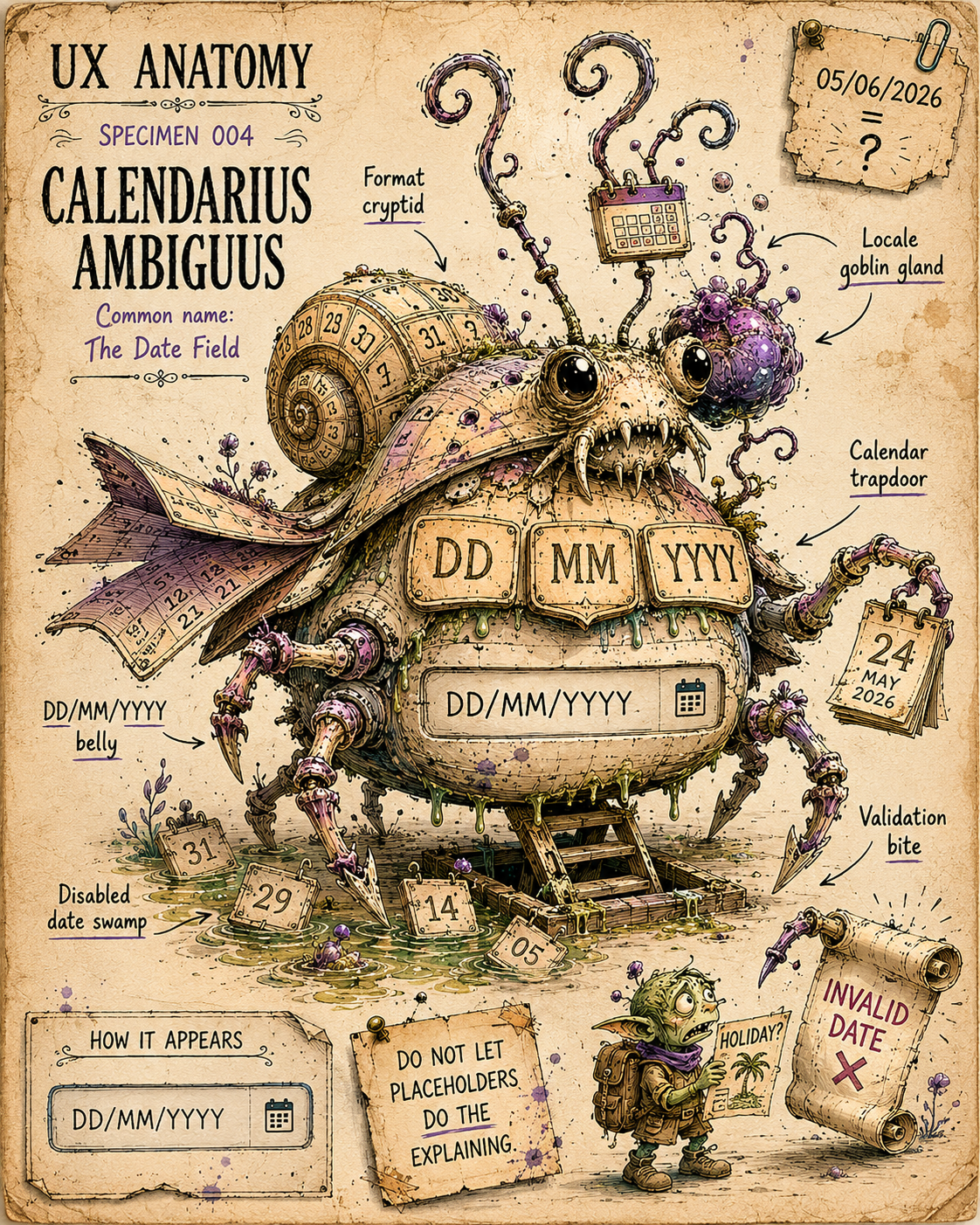
Specimen 004: The Date Field
Creature name: Calendarius Ambiguus
Common name: The Date Field
Habitat: Booking forms, travel enquiries, account creation, healthcare forms, finance applications, event registration, delivery scheduling, date-of-birth fields, expiry dates, and anywhere humans are forced to translate lived time into a tiny system-approved box.
Field Description
The Date Field is a deceptively small creature.
At rest, it looks like an ordinary input box. A neat rectangle. A polite placeholder. Perhaps a tiny calendar icon if it is feeling decorative.
But do not be fooled.
Inside this little box lives a complex negotiation between human memory, calendar systems, formatting rules, device behaviour, locale expectations, validation logic, and whatever fresh nonsense the date picker has decided to do this week.
A date field asks the user to convert a real-world moment into a format the interface will accept.
That moment might be simple:
“When do you want us to call you?”
Or slightly more loaded:
- When were you born?
- When do you travel?
- When does your passport expire?
- When did the problem start?
- When would you like this delivered?
The Date Field looks small because the interface is hiding the complexity.
It is not just asking for a date. It is asking the user to speak fluent machine-calendar.
Anatomical Function
The Date Field’s job is to collect a specific point in time clearly, accurately, and with as little cognitive faff as possible.
A good Date Field answers:
- What date do you need from me?
- What format should I use?
- Can I type it, pick it, or both?
- Are there limits on valid dates?
- Has the system understood the date correctly?
When healthy, the Date Field helps users enter dates quickly and confidently.
When diseased, it becomes a tiny bureaucratic swamp. Users type, delete, retype, open the calendar, close the calendar, wonder whether 05/06/2026 means 5 June or 6 May, and slowly begin to suspect the holiday was not worth it.
Healthy Date Field Traits
A healthy Date Field usually has:
- A visible label that explains the date being requested
- A clear format hint
- Support for typing where appropriate
- A date picker only when it actually helps
- Clear validation and error messages
- Sensible defaults where useful
- Clear restrictions on unavailable dates
- Good keyboard support
- A usable mobile experience
- Confirmation that the selected date has been accepted
The best Date Field feels like a helpful translation layer.
The worst Date Field feels like being interrogated by a calendar with a clipboard.
Common Mutations
1. The Format Cryptid
This Date Field shows a placeholder like:
- DD/MM/YYYY
Then expects the user to know exactly how to enter the date, including slashes, leading zeroes, year length, and whether it will tolerate human variation.
Some users type:
- 24/5/26
- 24 May 2026
- 24.05.2026
Others open the date picker because they no longer trust the box.
A format hint is useful, but it is not the same as forgiving input handling.
If the system needs a strict format, it should help the user succeed rather than waiting in the bushes with a validation error.
2. The Locale Goblin
This creature thrives on date ambiguity.
In the UK, 05/06/2026 usually means 5 June 2026.
In the US, it usually means May 6 2026.
In a global product, this is not a small detail. It is a tiny portal to chaos.
The Locale Goblin is especially dangerous in travel, healthcare, finance, legal, and booking contexts, where one misread date can have real consequences.
If ambiguity is possible, use clearer patterns:
- 5 June 2026
- 06 May 2026
- Day / Month / Year with separate labelled fields
- A date picker that confirms the selected date in words
Never assume the user shares the interface’s calendar accent.
3. The Calendar Trapdoor
This Date Field looks like a text input, but when clicked, it suddenly opens a calendar widget.
Sometimes this helps. Sometimes it blocks the form, covers nearby fields, grabs focus, or leaves users unsure whether they should type, click, tab, or make a small offering to the month selector.
Date pickers are useful when users are choosing from nearby dates, such as travel dates, appointments, delivery slots, or event bookings.
They are often painful for dates far in the past, like date of birth.
Nobody wants to click backwards through 43 years of tiny calendar arrows just to prove they are old enough to rent a car.
4. The Tiny Month Maze
This is the date picker that technically works but makes date selection fiddly.
Common signs include:
- Tiny next/previous arrows
- Small tap targets
- Poor focus styling
- Weak contrast
- Unclear disabled dates
- Month and year controls that are hard to use
- No easy way to jump across years
- Poor screen reader support
- Awkward behaviour on mobile
The Tiny Month Maze is particularly fond of appearing in booking forms, where it hides under the phrase “select date” and then makes the user wrestle May 2026 in a pop-up the size of a biscuit.
5. The Disabled Date Swamp
This Date Field presents unavailable dates as greyed-out calendar cells but does not explain why.
Past dates may be disabled. Fully booked dates may be disabled. Too-soon dates may be disabled. Too-far-future dates may be disabled. Sundays may be forbidden for reasons known only to the scheduling goblin.
Disabled states are useful only when users can understand the rule.
Otherwise, the user is left poking dead dates and wondering what they did wrong.
6. The Placeholder Impersonator
This creature uses placeholder text as the only guidance.
The problem is simple: placeholder text disappears when the user starts typing.
That means the format hint vanishes exactly when the user may need it most.
A placeholder can help, but it should not be the only label, instruction, or memory aid.
The Date Field should not whisper the rules once and then evaporate.
Behavioural Symptoms
A sick Date Field may cause:
- Users repeatedly opening and closing the calendar
- Users typing dates in rejected formats
- Users selecting the wrong month or year
- Users abandoning the form
- Users entering impossible or unintended dates
- Rage clicks on tiny calendar arrows
- Validation errors after apparently valid input
- Mobile users struggling with custom date pickers
- Keyboard users getting trapped or lost
- Screen reader users receiving unclear date information
In behaviour tools, Date Field problems may appear as hesitation, repeat clicks, form errors, field refocus, drop-off around date entry, or users skipping optional date fields entirely.
UX Diagnosis
A Date Field is not just a text input.
It is a translation device between human time and system time.
Humans think in birthdays, holidays, school years, appointments, deadlines, “next Friday”, “the day after we land”, and “roughly when the rash started but please don’t make this weird.”
Systems want structured values.
The Date Field sits between those two worlds.
The UX challenge is not simply “collect a date”. It is to help the user provide the right date, in the right format, with enough confidence that they do not second-guess what they have entered.
The more important the date, the less ambiguity the interface can afford.
Accessibility Notes
A healthy Date Field should:
- Have a visible, persistent label
- Provide clear format guidance
- Avoid relying on placeholder text alone
- Support keyboard input and navigation
- Use accessible names and instructions
- Announce errors clearly
- Communicate disabled dates and constraints
- Provide sufficient contrast for selected, focused, disabled, and current dates
- Avoid trapping focus inside calendar widgets
- Work well on touch devices
- Allow users to correct mistakes easily
Native date inputs can be useful, but support and behaviour vary across browsers and devices.
Custom date pickers can be helpful, but they often arrive missing keyboard behaviour, screen reader support, focus management, sensible error handling, and basic mercy.
For dates of birth or dates far in the past, typed entry or separate fields may be better than a calendar picker.
For travel, appointments, and scheduling, a date picker may help, but only if it is clear, navigable, and explains unavailable dates.
Practical Treatment
To improve a Date Field, ask:
- Is the label visible and specific?
- Is the format clear before and during entry?
- Can users type the date as well as select it?
- Is the input forgiving of common date formats?
- Is there any locale ambiguity?
- Does the calendar picker help this task, or make it harder?
- Are unavailable dates explained?
- Is the selected date confirmed clearly?
- Does the field work on mobile?
- Can keyboard users complete it?
- Can screen reader users understand and operate it?
- Are errors specific and useful?
- Would separate day, month, and year fields be clearer?
- Would showing the chosen date in words reduce risk?
Better Patterns
Instead of relying only on:
DD/MM/YYYY
Consider:
Text labels
Date of travel
Enter as day/month/year, for example 24/05/2026
For ambiguous dates, consider confirming in words:
Selected date: 24 May 2026
For date of birth, consider avoiding a calendar picker and using labelled fields:
Day
Month
Year
For appointment or travel dates, a calendar picker can work well when it includes:
Clear selected state
Easy month navigation
Disabled date explanations
Keyboard support
Mobile-friendly tap targets
Confirmation of the selected date
For unavailable dates, avoid silent grey mystery squares. Add context:
Fully booked
Not available on Sundays
Earliest available date is 24 May 2026
The goal is not to make dates decorative.
The goal is to make them hard to misunderstand.
Field Note
The Date Field looks like a small administrative detail.
It is not.
It is where human time meets system rules, and the system usually has worse manners.
A good Date Field helps users enter the right date without anxiety, ambiguity, or accidental time travel.
A bad one turns a simple enquiry form into a calendar-based escape room.
Use with care. Label generously. Never trust a placeholder to do the work of a proper explanation.